PDF tool

PDF Resize in KB — Match the Exact KB Your Portal Asks For

Upload forms state PDF limits as a number — "max 200 KB", "up to 0.5 MB" — and turn away a file that's even slightly over. This page resizes a PDF's file size to that number. Pick the KB the portal printed, drop the PDF in, and download a file whose size has been measured, not estimated. Pages keep their A4 or letter dimensions.

To resize a PDF in KB, select the limit your portal states — 100KB, 200KB, 300KB and 500KB are typical — and upload the PDF. The tool shrinks it until the finished file is at or below that number, counting 1 KB as 1,000 bytes like most portals do, and shows the exact size before you download.

100% private — your images never leave your device. No upload, no sign-up. Check it yourself: once this page loads, it works with your internet switched off.

PDF · size you chooseon-device · not uploaded

File size — choose what your form needs

Drop your PDF here

or click to browse

accepts: PDF

Unlimited and free · processed on this device · nothing is uploaded

Notice saysSame asPick here
0.1 MB100 KB (100,000 bytes)100KB
0.2 MB200 KB (200,000 bytes)200KB
0.3 MB300 KB (300,000 bytes)300KB
0.5 MB500 KB (500,000 bytes)500KB
1 MB1,000 KB1MB
2 MB2,000 KB2MB
How portals write the same limit — decimal units, 1 MB = 1,000 KB
Example

What the result looks like

Example document page converted to JPG, 620×877 px, 20.8 KB
Example document page converted to JPG, 620×877 px, 20.8 KB.
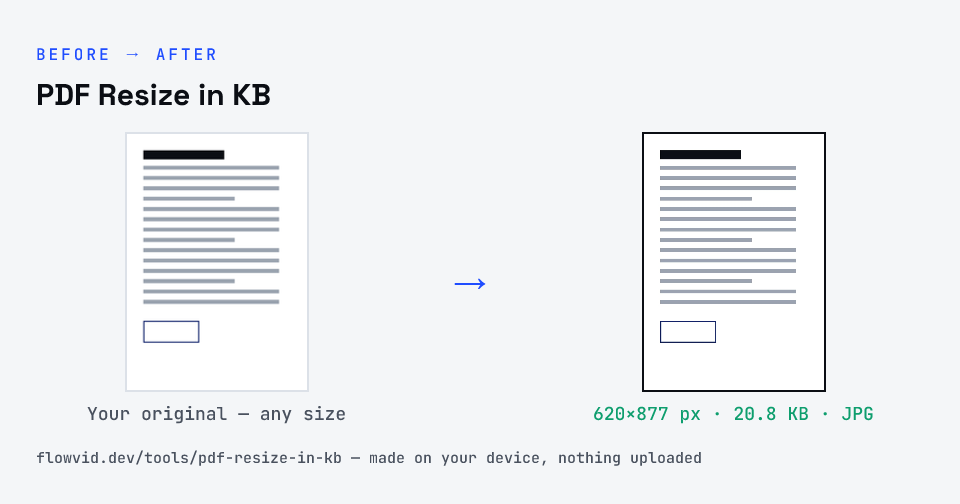
Before and after: an original document page and the same document page made to 200 KB (20.8 KB) with PDF Resize in KB
PDF Resize in KB size guide: target 200 KB, JPG

How to pdf resize in kb

  1. Drop your PDF in, or click to browse and select it.
  2. The tool tries a lossless rewrite first, then re-renders the pages if needed to get under 200KB.
  3. Check the final file size on the result card.
  4. Download your under-200KB PDF — ready to upload.

What you can use it for

  • Match the exact KB printed in a recruitment or admission notice
  • Turn an 'up to 0.5 MB' requirement into a file that passes
  • Fix a PDF the portal rejected with 'file size exceeds limit'
  • Make one document at several sizes for different portals

Why use FlowVid Tools

  • Private by design — your PDF is processed on your own device and is never uploaded.
  • Exact size — the finished file is measured, not estimated, before you download it.
  • Free and unlimited — no daily cap, no watermark, no sign-up.

Supported formats

This tool accepts PDF as input and gives you a PDF at the size you pick as output. Everything happens on your device in seconds — your file is never uploaded, so there is nothing for anyone to keep.

Where PDF size limits show up

Notices for marksheets, degree certificates and identity proofs frequently set 200KB, which is why it's the default here. Some portals write the same figure as 0.2 MB — it's the same limit.

If your notice gives a different figure, switch the size above the upload box. The PDF re-runs from your original each time, so you never end up compressing a compressed copy.

Getting a scan under the limit and keeping it readable

Size limits are shared across every page, so the single biggest lever is page count: upload only the pages the form asks for. A one-page certificate at a given limit comes out far sharper than the same limit spread over six pages.

Scan in colour only if the document needs it, keep the page flat and evenly lit, and crop away the desk around it. Less noise and less empty background leave more of the byte budget for the text itself.

KB, MB and why 1 KB means 1,000 bytes here

A kilobyte has two definitions in everyday use. The decimal one — 1 KB = 1,000 bytes, 1 MB = 1,000 KB — is what upload portals, phones and most websites use. The older binary one counts 1,024 bytes per KB and is still what Windows Explorer shows, while keeping the 'KB' label.

For a maximum, the decimal reading is the stricter one: 200 KB decimal is 200,000 bytes, while 200 KB binary is 204,800. So the tool targets the decimal figure, and a file that passes here passes under either definition.

Reading the size limit on a notice

Look for the line next to the upload field or in the document checklist — usually phrased as 'PDF, max 200 KB' or 'file size should not exceed 0.5 MB'. If photo and document limits are listed together, make sure you're reading the document one; the photo cap is often much smaller.

Where a notice gives a range, such as 'minimum 50 KB, maximum 300 KB', pick the maximum here. If the PDF ever ends up below a stated minimum, the Increase PDF Size tool raises it to an exact figure without touching the pages.

FAQ

Frequently asked questions

01

Will the PDF really be under 200KB?

Yes. The tool measures the complete finished PDF and only hands it over once it is at or below 200KB, counted in decimal kilobytes (1 KB = 1,000 bytes) the way upload forms count it. If a document simply has too many detailed pages for 200KB, the result card says so and gives you the smallest readable version instead of failing silently.
02

Is 1 KB 1,000 bytes or 1,024 bytes?

Both definitions exist. Upload portals and most phones use decimal units, where 1 KB is 1,000 bytes and 1 MB is 1,000 KB, while Windows shows sizes in 1,024s but still labels them KB. This tool counts in 1,000s — the stricter reading for a maximum — so a file that passes here passes either way.
03

The portal says 'less than 300 KB' — should I pick 300KB?

Yes. The target is a maximum, and because compression works in steps, the output normally lands somewhat under it. Check the exact size on the result card; if it ever reads exactly 300 KB and the notice says 'less than', run it again at 200KB.
04

My file is 1.2 MB and the limit is 500 KB — how much will quality drop?

That's well under half the size, which many PDFs reach losslessly or with mild re-rendering. Scanned pages lose a little crispness under zoom but read normally. The bigger the gap between your file and the limit, and the more pages it has, the softer the result.
05

Can I resize a PDF in KB to a number that isn't listed, like 250KB?

Pick the next size below it — for 250KB, choose 200KB — so the file is safely under. The main Compress PDF page also offers 50KB and 150KB if your limit is one of those.
06

How does it make the PDF smaller without wrecking it?

In three steps, stopping at the first that works. If your PDF is already under the limit, it's returned untouched. Next it tries a lossless rewrite of the file structure, which keeps text selectable. Only if that isn't enough does it re-render each page as an image and search for the sharpest resolution and JPEG quality that still fits — reducing resolution before quality, so pages go slightly soft rather than blocky.
07

Will the text in my PDF still be selectable?

If the lossless step is enough, yes. If the pages have to be re-rendered to reach the size, the text looks the same but becomes part of the page image, so it can't be selected or searched. Upload portals only need the document to be readable, so this doesn't affect acceptance — but keep your original if you need editable text later.
08

Is my PDF uploaded to a server?

No. The PDF is opened and compressed inside your browser, on your own phone or computer — it is never sent to our servers or anyone else's. That matters for the documents people usually shrink: Aadhaar and PAN copies, marksheets, bank statements and signed forms.
09

Is there a limit on files or pages?

There is no daily limit and no sign-up. Because the work happens on your device, a very long PDF simply takes a little longer on an older phone — and the more pages share a small size limit, the softer each page gets.
Related

More tools you might need

Edit & resize

Resize, crop, rotate & compress PDF

Jump to a size

Compress to a specific size