Government tool

Left Thumb Impression Resize — IBPS & SBI Size, Free

Bank recruitment forms ask for a scanned left thumb impression alongside your photo and signature. This tool fits a photo or scan of your thumb impression onto a clean white 240×240 pixel square at 200 DPI and keeps the JPG between 20KB and 50KB — the window IBPS and SBI set. It runs on your device, so nothing is uploaded.

For IBPS and SBI applications, the left thumb impression is a JPG of 240×240 pixels (3 × 3 cm at 200 DPI) between 20KB and 50KB, made in black or blue ink on white paper. Press your thumb on an ink pad, then on plain paper, photograph it straight-on, and this tool fits it to that exact size and KB window.

100% private — your images never leave your device. No upload, no sign-up. Check it yourself: once this page loads, it works with your internet switched off.

240×240 · 50KBon-device · not uploaded

File size — choose what your form needs

Sign on plain white paper and take a straight photo — the tool crops to your signature and whitens the paper.

Drop your image here

or click to browse

accepts: JPG, PNG, WebP, HEIC

Unlimited and free · processed on this device · nothing is uploaded

Width
240 px
Height
240 px
File size
20–50 KB
Format
JPG

Checked against the official notice · last checked 30 Oct 2026

From SBI's official 2026 advertisement; IBPS's 2026 notifications use the same figures: 240×240 px, 3 × 3 cm at 200 DPI, 20–50KB, JPG.

Notices change between cycles — if yours says something different, follow your notice.

Compare every exam's photo & signature size →

Example

What the result looks like

Example Left Thumb Impression signature resized to 240×240 px (3.0 × 3.0 cm at 200 DPI), 20.1 KB JPG
Example Left Thumb Impression signature resized to 240×240 px (3.0 × 3.0 cm at 200 DPI), 20.1 KB JPG.
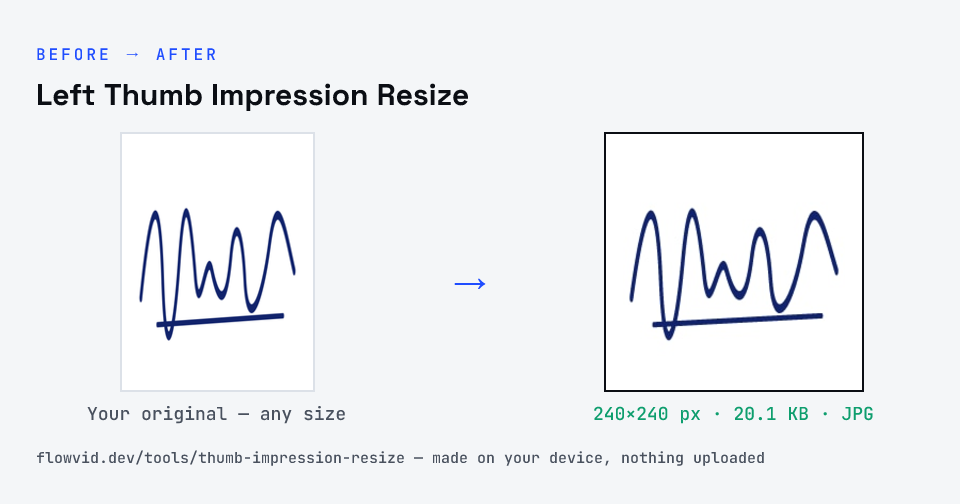
Before and after: an original signature and the same signature made to 240×240 px (20.1 KB) with Left Thumb Impression Resize
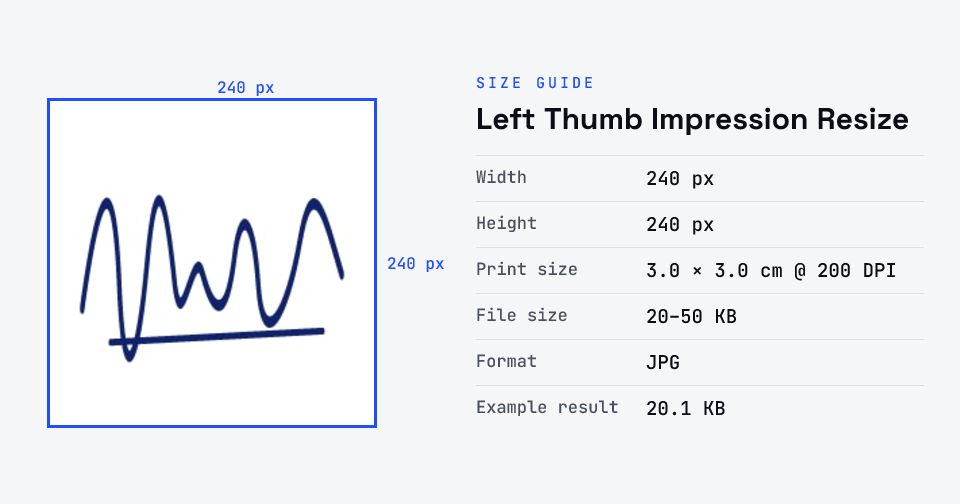
Left Thumb Impression Resize size guide: 240 × 240 px (3.0 × 3.0 cm at 200 DPI), 20–50 KB, JPG

How to left thumb impression resize

  1. Upload your photo or signature.
  2. The tool resizes it to 240×240 px and compresses it to the required size.
  3. Preview the result and check the dimensions and file size.
  4. Download the ready-to-upload file.

What you can use it for

  • IBPS PO, Clerk and RRB applications
  • SBI PO and Junior Associate (Clerk) applications
  • Re-uploading a thumb impression rejected for size
  • Other bank recruitment forms with the same spec

Why use FlowVid Tools

  • Private by design — your image is processed on your own device and is never uploaded to any server.
  • Completely free and unlimited — no daily cap, no watermark, no sign-up.
  • Fast — drop your image, get the result in seconds. No queues, no waiting.

Supported formats

This tool accepts JPG, PNG, WebP, HEIC as input and gives you a 240×240 px as output. Everything happens on your device in seconds — your file is never uploaded, so there is nothing for anyone to keep.

FAQ

Frequently asked questions

01

What is the thumb impression size for IBPS and SBI?

240×240 pixels (3 × 3 cm at 200 DPI), between 20KB and 50KB, as a JPG. Use black or blue ink on plain white paper. This tool outputs exactly that.
02

How do I make a clear thumb impression?

Ink the left thumb evenly on a stamp pad, press it once on plain white paper without smudging, let it dry, then photograph it straight-on in good light. Crop away the rest of the sheet if you can — the tool centres the print on a white square.
03

My thumb impression is only 8KB — will it be rejected?

Yes, both IBPS and SBI set a 20KB minimum. This tool saves at high quality and, if a plain scan still comes out small, pads the file to the 20KB floor without changing how it looks.
04

Can I choose the file size, and will the photo stay sharp?

Yes. Pick the size your form needs from the selector above the upload box. The photo is rendered at a high resolution and the exact proportions your form expects, so it stays sharp — a larger size keeps more detail, while a smaller size softens the image slightly rather than turning blocky. The default matches the size most forms ask for.
05

Will there be white space around my signature?

No. The tool finds your signature on the page, crops to it and turns the paper pure white, so the signature fills the box — even from a phone photo of a whole sheet with shadows. If it picks the wrong area, tap Adjust crop and drag the frame; what's inside the frame is exactly what you download. If you upload a photo instead of a signature, it fills the box with no white borders.
06

Is my photo uploaded anywhere?

No. The tool runs inside your browser, so your photo is read and processed on your own phone or computer and never sent to our servers or anyone else's. We never receive it, so we can't see, keep or share it — which makes it safe for sensitive documents like Aadhaar, PAN, passports and bank statements.
07

Is this tool really free? Is there a daily limit?

Yes, it's free with no daily limit. Because the work happens on your device, an extra photo costs us nothing — so there's no cap, no watermark and no account needed. Process as many files as you like.
Related

More tools you might need

Edit & resize

Resize, crop, rotate & compress PDF

Jump to a size

Compress to a specific size