
Compress tool

Resize Image 20KB to 50KB — Stay Inside the Band

When a notice says "photo between 20 KB and 50 KB", a file outside that window fails either way — too big straight from a phone, or too small after heavy compression or a clean signature scan. Pick where in the band you want to land and this page resizes the file size to fit. It changes kilobytes, not pixels, and it all runs on your device.

To resize an image to between 20KB and 50KB, upload it and choose a target inside the band, such as 30KB or 40KB. The tool reduces a large photo to just under that figure, and if a small file would end up below 20KB, it adds invisible padding so the portal's minimum is met.

100% private — your images never leave your device. No upload, no sign-up. Check it yourself: once this page loads, it works with your internet switched off.

pick a target sizeon-device · not uploaded

Target size — tap to switch any time

Drop your image here

or click to browse

accepts: JPG, PNG, WebP, HEIC

Unlimited and free · processed on this device · nothing is uploaded

File size
20–50 KB
Format
JPG

Required photo dimensions and file sizes differ between forms and change over time. This tool helps you hit a common target, but always verify the exact requirement on the official form or notification before you submit.

Example

What the result looks like

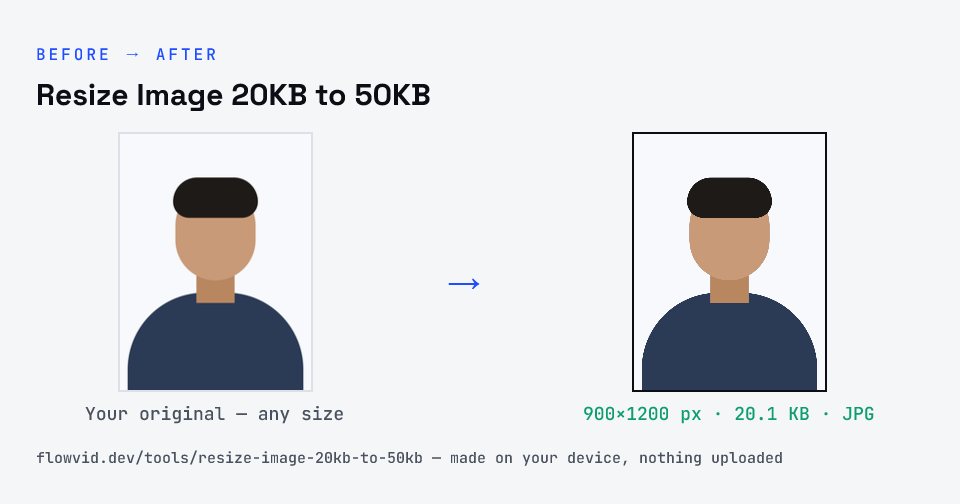
Example photo compressed to 20.1 KB — under 40 KB — as a JPG
Example photo compressed to 20.1 KB — under 40 KB — as a JPG.
Before and after: an original photo and the same photo made to 40 KB (20.1 KB) with Resize Image 20KB to 50KB
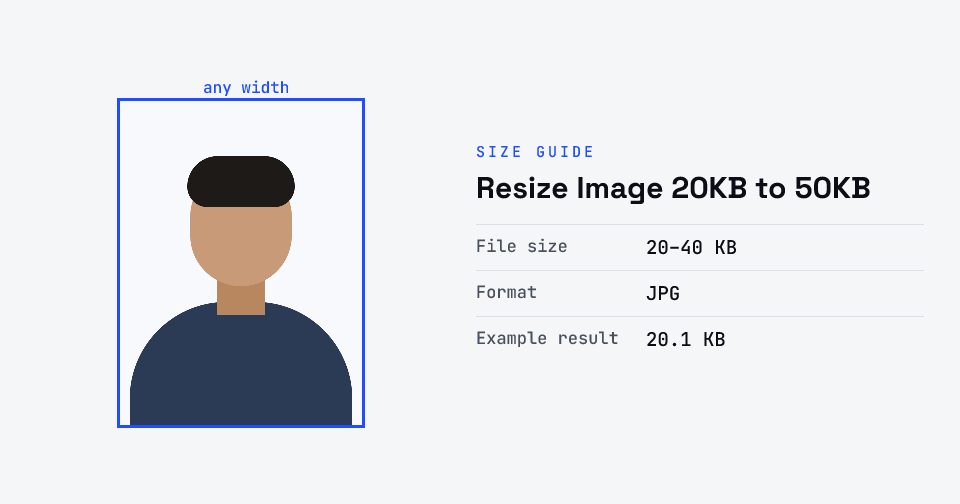
Resize Image 20KB to 50KB size guide: target 40 KB, 20–40 KB, JPG

How to resize image 20kb to 50kb

  1. Pick a target inside the band — 25, 30, 40, 45 or 50 KB.
  2. Drop in your photo or signature, or click to browse.
  3. A large file is reduced to just under the target; a tiny one is padded up to 20 KB.
  4. Download the JPG, which sits between 20 and 50 KB.

What you can use it for

  • Forms with a 20–50KB rule for photos or signatures
  • A signature scan that came out under the 20KB minimum
  • A phone photo far over the 50KB maximum
  • Making two versions inside the band to compare quality

Why use FlowVid Tools

  • Private by design — your image is processed on your own device and is never uploaded to any server.
  • Completely free and unlimited — no daily cap, no watermark, no sign-up.
  • Fast — drop your image, get the result in seconds. No queues, no waiting.

Supported formats

This tool accepts JPG, PNG, WebP, HEIC as input and gives you a JPG between 20 and 50 KB as output. Everything happens on your device in seconds — your file is never uploaded, so there is nothing for anyone to keep.

Why forms set a minimum as well as a maximum

A floor stops people uploading tiny, unreadable thumbnails; a ceiling keeps storage and page loads under control. Together they push applicants towards a photo that is small but still detailed enough for someone to match against the candidate later.

Most people only ever bump into the top of the band. The bottom catches out signatures and plain-background photos, which compress so well that they slip under 20KB — the case this page handles automatically.

FAQ

Frequently asked questions

01

Which number in the band should I choose?

40KB is a good default: clearly above the floor and safely below the ceiling. Pick 45 or 50 for more detail in a photo; a signature looks the same at 25 or 30. The download always comes out a little under the figure you pick.
02

How can padding make a file bigger without changing it?

Every JPEG ends with a marker that tells image viewers the picture is finished. The tool adds empty bytes after that marker, so the size reaches the 20KB floor while every viewer and portal shows exactly the same image.
03

I have a 20KB photo and the form needs at least 50KB — is this the page?

No. If the file must be at least 50KB, use Increase Image Size in KB, which raises a file to an exact figure. This page is for landing anywhere inside 20–50KB.
04

Does this page resize the pixel dimensions?

Only if it has to in order to get under the size you picked. 'Resize' here is about file size in KB; for an exact width and height such as 200×230, use the pixel resizer first, then bring the file into the band here.
05

Is this the same as the "compress image 20kb to 50kb" page?

It does the same job with a different set of size steps — 25, 30, 40, 45 and 50KB. Both keep the file inside 20–50KB, so use whichever suits the size you want.
06

Is my photo uploaded anywhere?

No. The tool runs inside your browser, so your photo is read and processed on your own phone or computer and never sent to our servers or anyone else's. We never receive it, so we can't see, keep or share it — which makes it safe for sensitive documents like Aadhaar, PAN, passports and bank statements.
07

Is this tool really free? Is there a daily limit?

Yes, it's free with no daily limit. Because the work happens on your device, an extra photo costs us nothing — so there's no cap, no watermark and no account needed. Process as many files as you like.
Related

More tools you might need

Edit & resize

Resize, crop, rotate & compress PDF

Jump to a size

Compress to a specific size