

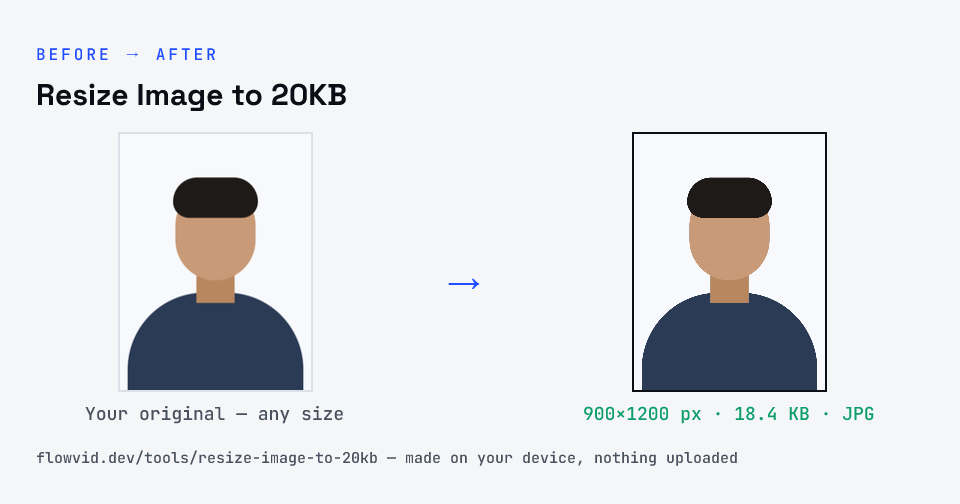
How to resize image to 20kb
- Drop your image in, or click to browse and select it.
- The tool automatically finds the highest quality that still fits under 20KB.
- Check the live preview and the final file size.
- Download your optimised image — ready to upload.
What you can use it for
- Recruitment and exam forms with a 20KB photo limit
- Re-uploading a photo the portal rejected as too large
- Older-style application forms that ask for small JPGs
- Sending a compact ID photo over a slow connection
Why use FlowVid Tools
- Private by design — your image is processed on your own device and is never uploaded to any server.
- Completely free and unlimited — no daily cap, no watermark, no sign-up.
- Fast — drop your image, get the result in seconds. No queues, no waiting.
Supported formats
This tool accepts JPG, PNG, WebP, HEIC as input and gives you a 20KB image as output. Everything happens on your device in seconds — your file is never uploaded, so there is nothing for anyone to keep.
Getting a clear face into 20KB
20KB leaves little room, so the order of steps matters. Crop first, so the picture is just your head and shoulders. Then let the tool search for the quality setting: it tries a high setting, checks the size, and steps down only as far as it must. Doing it the other way round — compressing a full-frame phone photo — spends the budget on background and leaves your face smeared.
Lighting is the other lever. Even light from the front gives smooth skin tones that compress cleanly; harsh shadows and grainy low-light shots carry noise that looks like detail to the encoder. Retaking a photo beside a window often helps a 20KB upload more than any setting.